
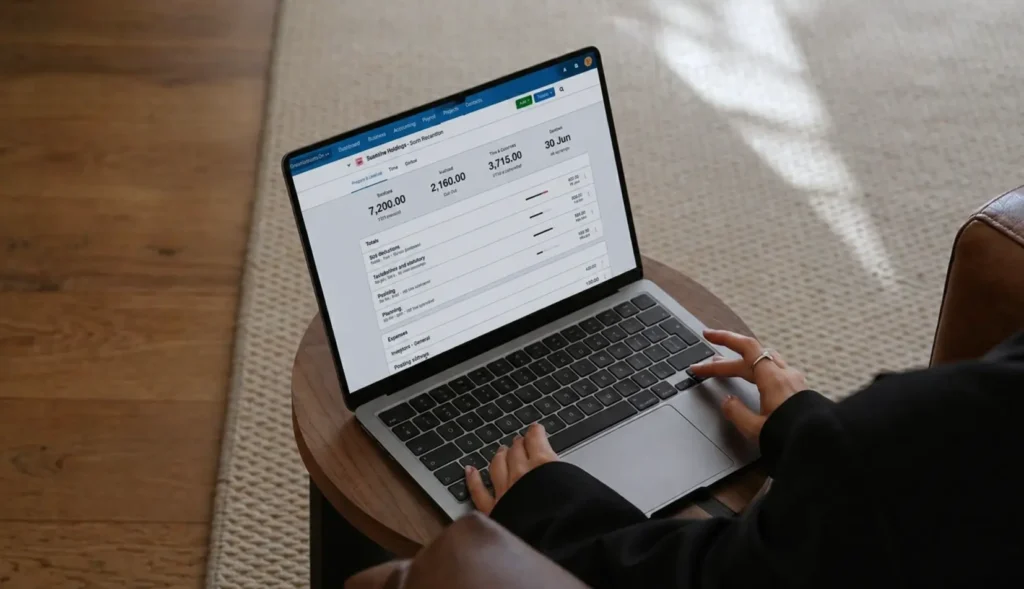
Setting up Xero feels intimidating until you actually do it. Then you realise it’s mostly a series of small, simple choices — not the technical mountain it looks like from the outside. This guide walks you through the whole thing, step by step, in plain English.
I’ll keep this practical and short on theory. By the time you finish reading, you’ll know exactly what to do, in what order, and what to skip on day one. If you give it focused attention, the whole setup takes about an hour — less if your business is simple.
Before You Start: A 5-Minute Prep
Have these things in front of you before you log in. It saves a lot of stop-and-go later.
- Your ABN. If you have one. If not, that’s a separate step you’ll want to handle first.
- Online banking access. You’ll need to log in to your bank to connect the feed.
- A rough list of your typical expense categories. Things like “rent,” “subscriptions,” “advertising.” Don’t overthink it — we’ll refine later.
- 30 to 60 minutes of focused time. Setup goes faster when you don’t keep getting interrupted.
Step 1: Choose Your Plan and Sign Up
Go to xero.com.au and pick a plan. For most early-stage small businesses, the smallest plan is enough — you can upgrade later. Don’t overspend at the start. The plans differ mostly in how many invoices and bills you can handle per month, plus a few extras like multi-currency or expense management.
A note on the free trial
Xero offers a 30-day free trial. Use it to walk through this guide without committing. By the end of the trial, you’ll know whether it’s the right fit.
Step 2: Add Your Business Details
Once you’re in, the first screen asks for your business name, ABN, contact details, and time zone. Take 60 seconds to fill it out properly — this information ends up on your invoices, so make sure the spelling and details are right.
Don’t worry about uploading a logo yet. You can come back to that later when you have a proper brand asset. The default version still produces clean, professional invoices.
Step 3: Connect Your Bank Account (The Most Important Step)
Go to Accounting → Bank Accounts → Add Bank Account. Pick your bank from the list and follow the secure connection flow. Xero will ask you to log in to your online banking, and from that point on, your transactions will flow into Xero automatically — usually within 24 hours.
This is the single feature that makes Xero worth using. Without the bank feed, you’re back to manual entry. With it, you walk in every Monday and your week is already sitting there waiting for you.
“If you only do one thing in Xero on day one, connect your bank feed. Everything else can wait. This can’t.”
Step 4: Set Up Your Chart of Accounts
This sounds technical and it isn’t. Your “chart of accounts” is just the list of categories you’ll use to label transactions. Xero comes with a standard chart already set up — for 80% of small businesses, this is fine to start with.
What to customise on day one
- Add categories specific to your business. If you’re a hairdresser, add “Salon Products.” If you’re a coach, add “Online Course Tools.” Keep it simple — under 15 custom categories.
- Hide accounts you’ll never use. Xero’s default list includes things like “Inventory” and “Cost of Goods Sold” which won’t apply if you’re a service business. Hiding them keeps your reports cleaner.
Don’t try to perfect this in week one. You’ll naturally refine it as you start categorising real transactions.
Step 5: Send Your First Invoice
Even if you don’t have a client to invoice yet, do this as a test. Go to Business → Invoices → New Invoice. Add a contact (you can put yourself in for testing), pick a service or item, and send.
Doing this once removes 90% of the future friction. The next time you actually need to invoice a real client, you’ll already know where the buttons are. Most owners avoid invoicing for weeks because they’re scared of the system — not the conversation.
Step 6: Categorise Your First Batch of Transactions
By now, your bank feed should have pulled in some recent transactions. Go to Bank Accounts → Reconcile. Each transaction has a “match” button on one side and a “create” button on the other.
- Match: Use this when the transaction matches an invoice or bill you already created in Xero.
- Create: Use this for transactions that aren’t tied to an invoice (most of your expenses). Pick a category, add a quick note if useful, and confirm.
Xero learns your habits. After a few weeks, it starts suggesting categories automatically. By month two, reconciliation goes from 30 minutes to about 10.
What to Skip in Your First Week
Xero has dozens of features. Most of them you don’t need on day one. To stay sane, avoid these for now:
- Inventory tracking — only relevant if you sell physical products and want stock counts. Most service businesses can skip this entirely.
- Multi-currency — only needed if you’re regularly paid in foreign currencies.
- Projects and tracking categories — useful later when you want to slice your numbers by client or project. Skip until you have the basics nailed.
- Custom invoice branding — default templates are fine. Polish later.
You’re Ready
That’s it. With those six steps, you have a functional Xero setup for a small business. You can invoice clients, reconcile your bank, see basic reports, and have a real-time view of where your money is going.
The trick isn’t perfection — it’s consistency. Use it weekly (even just for 20 minutes), keep your transactions categorised, and trust that the small messes you create now are easy to clean up later. The hardest part of Xero is starting. The rest is just habit.